
Every so often, someone asks a deceptively simple question about email:
“Can we get a report showing who actually read a specific message?”
Exchange Online doesn’t provide a neat, built-in “read analytics” report for arbitrary messages (and even if it did, email clients have their own opinions about when a message is “read”). Still, if you’re operating inside a Microsoft 365 tenant and the message landed in Exchange Online mailboxes, you can build a report that’s accurate enough to be genuinely useful.
The trick is to combine two sources of truth:
- Message Trace V2 tells you who actually received the message (Delivered).
- Microsoft Graph lets you query each recipient mailbox for the message’s
internetMessageIdand check theIsReadflag.
That’s exactly what my script does – it avoids scanning the entire tenant and only checks recipients confirmed by trace.
Why this approach works
If you try to answer “who read this email?” by scanning every mailbox, you’re going to have a bad time – especially in large tenants.
This script flips the problem around:
- Start with delivery reality (Message Trace V2, Delivered)
- Then ask only those recipients whether the message is read (Graph,
IsRead)
In other words: filter hard first, query second.
A practical use case
A common scenario is an internal broadcast email – for example, an internal newsletter sent by your marketing team. They don’t need pixel tracking; they just want a simple read/unread breakdown for the message they sent to employees.
With this approach you can provide:
- delivered recipients (from Exchange trace)
- read/unread status (from Graph)
- CSV output for sharing or follow-up reporting
What the script actually does
Step 1 – Message Trace V2: Get delivered recipients
The script runs Get-MessageTraceV2 with:
-Status Delivered-SenderAddress <sender>- a stable time window:
It then selects the relevant fields:
RecipientAddressMessageId(this is theinternetMessageId)SubjectReceived
And de-duplicates recipient/message pairs.
Step 2 – Microsoft Graph: Check IsRead using internetMessageId
For each recipient from trace, the script calls Graph and filters the mailbox messages by:
internetMessageId eq '<MessageId from trace>'
It returns the newest matching item and records:
IsRead- subject
- received timestamp
- status (
OK,NotFoundInMailbox,Error:…)
Requirements
PowerShell Modules
ExchangeOnlineManagementMicrosoft.Graph
Authentication model
The script uses app-only certificate-based authentication for both:
- Exchange Online PowerShell (Connect-ExchangeOnline)
- Microsoft Graph (Connect-MgGraph)
Permissions (high level)
Exchange Online (app-only):
- must be able to run
Get-MessageTraceV2 - must be able to validate sender via
Get-EXORecipient
Microsoft Graph (app-only):
Mail.Read(Application) with admin consent
As always: treat application permissions and certificates as privileged assets and govern accordingly.
Running the script
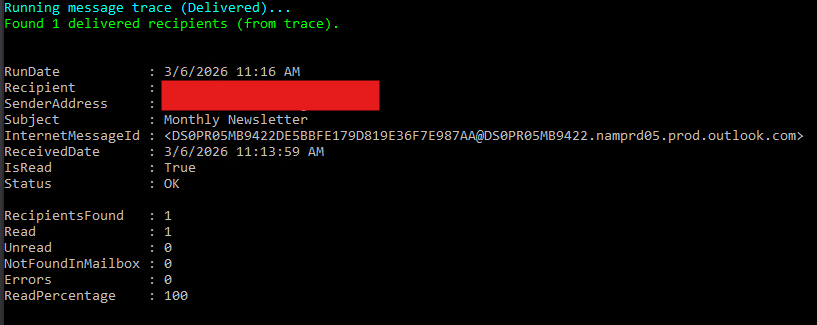
Basic run (console output)
|
1 2 3 4 5 |
.\Exchange-Get-Mail-Read-Status.ps1 ` -SenderAddress sender@contoso.com ` -StartDate 2026-03-06 ` -EndDate 2026-03-06 ` -Subject "Monthly Newsletter" |
Export detailed + summary CSV reports
|
1 2 3 4 5 6 |
.\Exchange-Get-Mail-Read-Status.ps1 ` -SenderAddress sender@contoso.com ` -StartDate 2026-03-05 ` -EndDate 2026-03-05 ` -Subject "Monthly Newsletter" ` -Report |
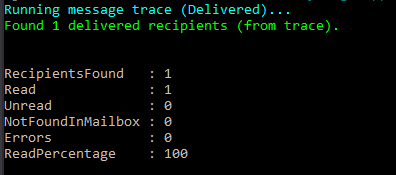
This will create two csv files to use for reporting:

Summary-only mode
|
1 2 3 4 5 6 |
.\Exchange-Get-Mail-Read-Status.ps1 ` -SenderAddress sender@contoso.com ` -StartDate 2026-03-05 ` -EndDate 2026-03-05 ` -Subject "Monthly Newsletter" ` -SummaryOnly |
Understanding the output
The summary provides:
RecipientsFoundReadUnreadNotFoundInMailboxErrorsReadPercentage
The detailed CSV includes per-recipient rows with:
- recipient address
- message id (
internetMessageId) - received timestamp
- isRead
- status
This is typically everything people want and a bit more than they expected.
Important notes
IsRead is not an audit log
The IsRead flag is mailbox state, influenced by clients and settings (preview pane, mobile behavior, cached mode, etc.). It’s a strong indicator, but not a courtroom exhibit.
Delivered ≠ Read
Message trace confirms delivery. “Read” requires the Graph step and even then, it reflects mailbox state rather than user intent.
Throttling can happen
If you query a large number of recipients, Graph may throttle. The script includes -ThrottleMs so you can slow down calls when needed.
Script Source
Complete script as always is available for download on Azure365Addict GitHub.
Feel free to customize the script to fit your specific needs and improve your Exchange Online hygiene.
If you have any questions or want to extend this into automated cleanup or reporting, feel free to reach out.
Happy scripting!

